
Hortech Campus Television Assistance
Located in every room either on the table or attached to the back of the TV is a remote. Please power on the TV using the remote and press the “Home” button to display this screen.
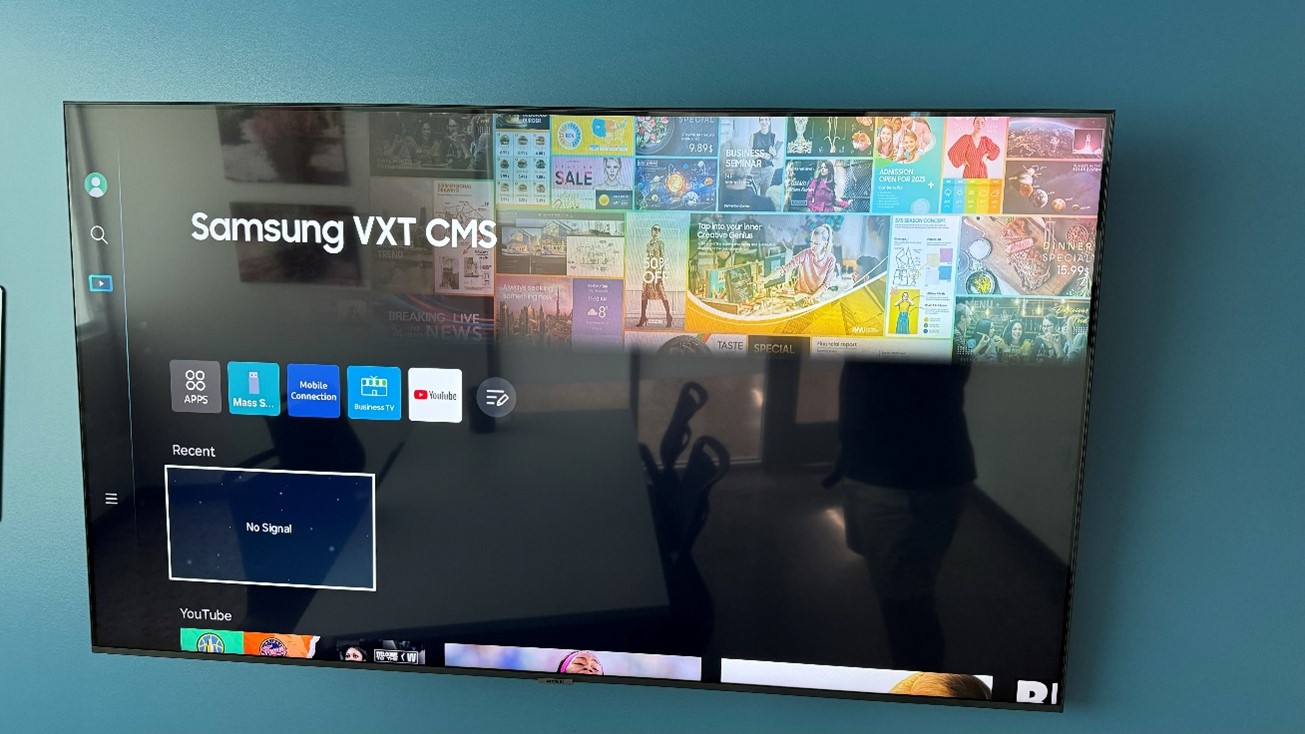
This will look very similar to your home screen. From here select the Left Arrow on your remote to move your selection to the sidebar. Within the sidebar you will want to select Connected Devices.
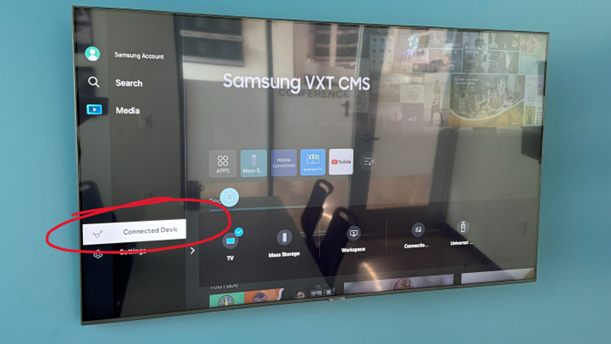
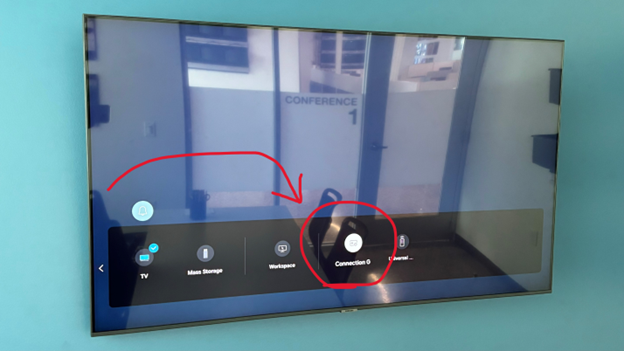
From here you will see five options on the right. Select Connected Devices.
Scroll down and select PC on the left
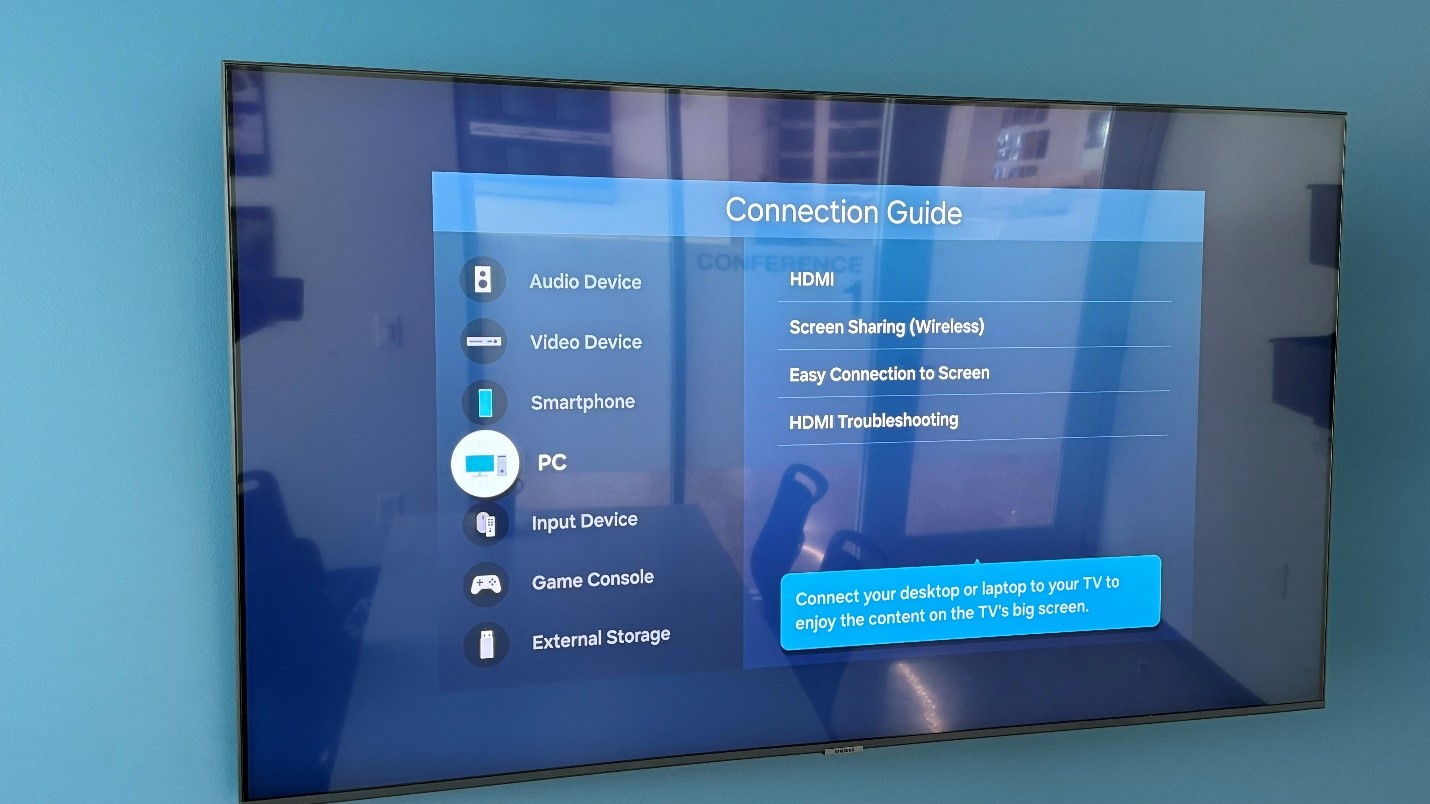
Scroll to the right and select Screen Sharing (Wireless)
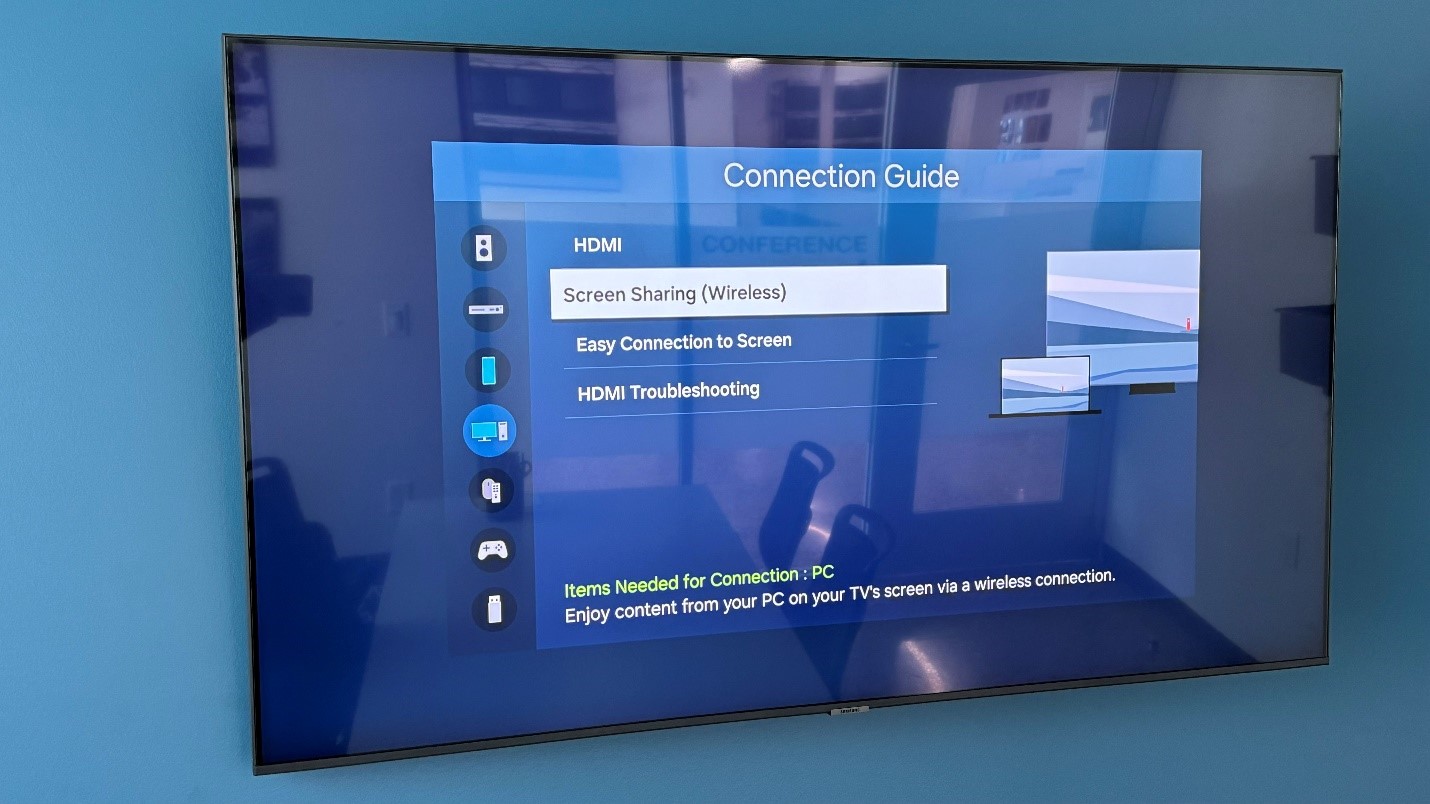
Once you are on this screen, move to your laptop.
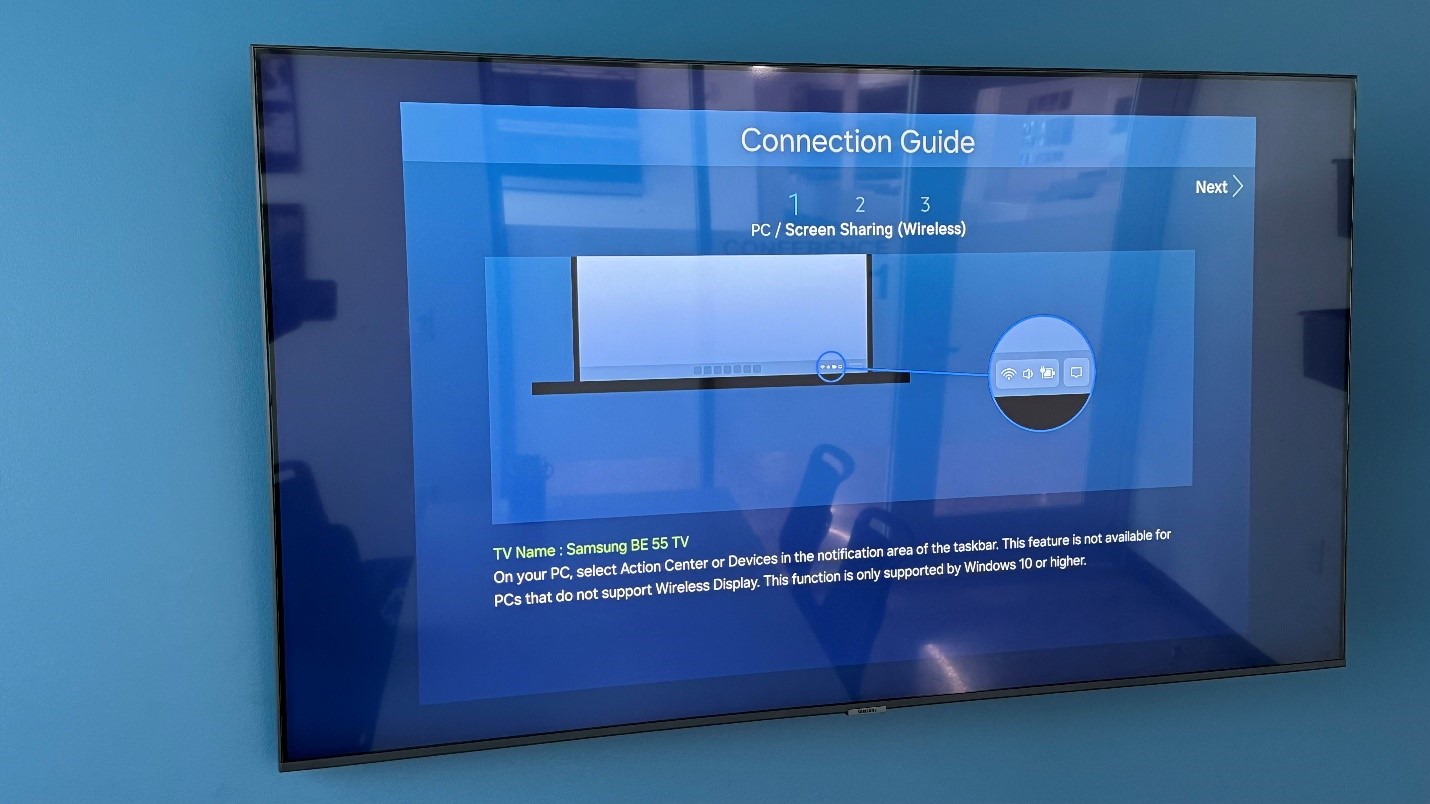
On your laptop:
Press Windows Key + K (“K” for cast, idk why it’s K but remember it like that)
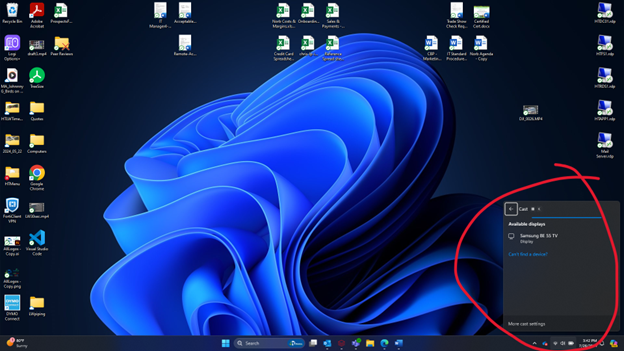
When you press those two keys your laptop will show a list of available TVs to cast your screen to. If you have done the previous steps correctly, a TV will appear.
ONCE YOU SELECT THE TV DO NOT TOUCH YOUR LAPTOP. Doing so will interrupt the connection, and you may have to restart your laptop to get a successful connection.